New: Academic Computing Drop-in Sessions
Academic computing drop-in sessions are now run by members of our team on Wednesday afternoons! Head to our drop-in info page for details & schedule....
 Transferring files to OneDrive for Business from Linux Storage
Staff and students at the University of Reading have access to cloud file storage via OneDrive for Business. Data transfer between Linux storage volumes, such as Linux home directories and research data storage and OneDrive is possible using the method described below.
Please note that using rclone on our academic computing systems via command line is no longer supported. The most reliable transfer method between OneDrive and Linux storage is via the web interface on NX, please see below. You can request rclone for individual use from https://myaccess.microsoft.com/@livereadingac.onmicrosoft.com#/access-packages and sign in with your University credentials when prompted.
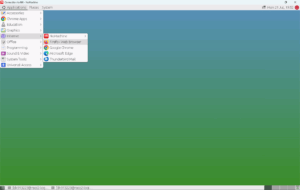
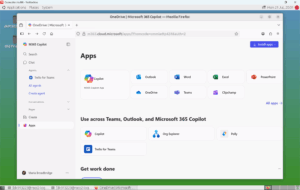
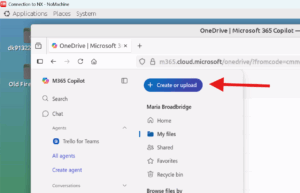
From a web browser on the managed Linux desktop NX, files between OneDrive and Linux storage can be directly transferred. Here’s how:
 NX authorization code
 NX Troubleshooting Guide
 Linux Keyboard Layout